

WordPress SEO Setup Guide for New Sites
Picture a dog owner searching at midnight for “how to stop my dog escaping the yard.” If your fencing or pet safety site doesn’t show up, that owner finds someone else’s advice, and maybe buys someone else’s product.
A brand-new WordPress site starts with zero authority. But the setup choices you make in the first week decide how quickly Google finds, understands, and trusts your content.
This WordPress SEO setup guide walks through every step in order, along with the mistakes I see most often on new pet care sites.
Quick Answer: How Do You Set Up SEO on a New WordPress Site?
Follow this WordPress SEO setup guide: uncheck “Discourage search engines,” pick post-name permalinks, install one SEO plugin, submit your XML sitemap in Google Search Console, enable HTTPS, speed up the site, and optimize titles, descriptions, and internal links for every page.
Why Early SEO Setup Matters
Google doesn’t rank sites on day one. It crawls, evaluates, and slowly builds trust.
Following a WordPress SEO setup guide from day one saves you from redirects, lost momentum, and messy cleanup later. Doing it right at the start costs you an afternoon.
For niche sites like dog fencing and pet safety, trust matters even more. People act on your advice to keep their animals safe, so Google looks closely for signs of real expertise.
Step 1: Fix the Settings That Can Hide Your Site
Two settings cause most “why am I not on Google?” panics.
Uncheck “Discourage Search Engines”
- Go to Settings → Reading
- Find “Search engine visibility”
- Uncheck the box
- Save changes
Many developers tick this during staging and forget it. Your site can stay invisible for months.
Set Your Preferred Domain
Decide between www and non-www, then stick with it. Set it in Settings → General so both versions don’t compete against each other.

Step 2: Choose an SEO-Friendly Permalink Structure
This stage of the WordPress SEO setup guide is best finished before you publish a single post. Go to Settings → Permalinks and select Post name.
- ✓ Clean:
yoursite.com/wireless-dog-fence-guide - ✗ Messy:
yoursite.com/?p=123
Changing permalinks later breaks links unless you set up 301 redirects.
Tip: Keep slugs short. “best-wireless-dog-fence” beats “the-best-wireless-dog-fence-for-large-dogs-in-2026.”
Step 3: Install One SEO Plugin (Not Two)
Every good WordPress SEO setup guide recommends running just one SEO plugin. It handles sitemaps, meta tags, schema, and on-page checks. Running two at once creates duplicate tags and conflicts.
Comparison of Popular WordPress SEO Plugins
| Plugin | Key Highlight | Best For | Rating/Durability |
|---|---|---|---|
| Yoast SEO | Readability and SEO scoring | Beginners who want guidance | ★★★★★ Long-established, very stable |
| Rank Math | Feature-rich free version, built-in schema | Users wanting more free tools | ★★★★☆ Newer, fast-improving |
| All in One SEO | Setup wizard, clean interface | Non-technical site owners | ★★★★☆ Reliable, mature |
| SEOPress | Lightweight, no ads | Speed-focused sites | ★★★★☆ Solid, smaller community |
Yoast SEO
Pros
- ✓ Beginner-friendly traffic-light feedback
- ✓ Huge community and documentation
- ✓ Reliable sitemap generation
Cons
- ✗ Some useful features sit behind the premium tier
- ✗ Green lights can encourage over-optimization
Rank Math
Pros
- ✓ Generous free features, including multiple focus keywords
- ✓ Built-in schema options
- ✓ Setup wizard speeds up configuration
Cons
- ✗ The number of options can overwhelm beginners
- ✗ Shorter track record than Yoast
My take: Pick either Yoast or Rank Math and move on. The plugin matters far less than the content you publish.

Step 4: Set Up Google Search Console and Submit Your Sitemap
Any solid WordPress SEO setup guide puts Search Console near the top of the list. It’s free and shows how Google sees your site.
- Create an account at Google Search Console
- Add your site as a property and verify ownership
- Locate your sitemap (usually
yoursite.com/sitemap_index.xml) - Go to Sitemaps and submit the URL
- Use URL Inspection to request indexing of your homepage and first posts
Check the Pages report weekly for indexing errors. A page marked “Crawled – currently not indexed” often signals thin or duplicate content.
Step 5: Secure Your Site with HTTPS
Google treats HTTPS as a ranking signal, and browsers warn visitors away from insecure sites.
- Most hosts offer free SSL certificates (often Let’s Encrypt)
- Confirm your WordPress and Site Address URLs both start with
https:// - Redirect all
http://traffic tohttps://
Trust is especially important if you plan to sell products or collect emails.
Step 6: Speed Up Your Site
Slow sites frustrate visitors, and most of your readers will arrive on phones, often while standing in the yard looking at a broken fence line.
Practical Speed Fixes
- Choose a lightweight theme (GeneratePress, Astra, Kadence)
- Compress images before uploading, and use WebP where possible
- Add a caching plugin such as WP Rocket or LiteSpeed Cache
- Delete unused plugins and themes
- Lazy-load images below the fold
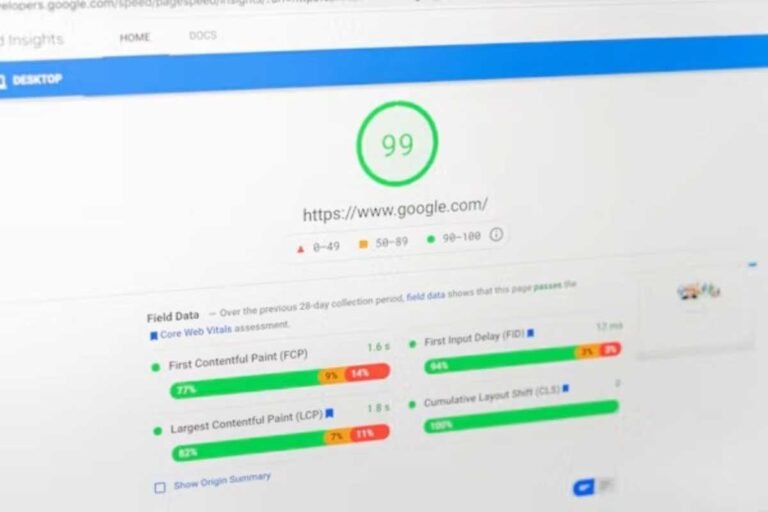
Test with PageSpeed Insights and focus on Core Web Vitals. Don’t chase a perfect 100. A fast, stable page is the goal.
Step 7: Master On-Page SEO for Every Post
This is where rankings are actually won, and it’s the most valuable part of any WordPress SEO setup guide.
Title Tags and Meta Descriptions
- Keep titles under 60 characters and put the main keyword near the front
- Write meta descriptions of 150-160 characters with a clear reason to click
- Make every title and description unique
Headings and Structure
- Use one H1 per page (your title)
- Use H2s for main sections and H3s for subtopics
- Include your keyword naturally, not in every heading
Image Optimization
- Use descriptive file names:
boundary-flag-training.jpg, notIMG_4471.jpg - Write alt text that describes the image for real
- Skip keyword stuffing in alt text
Write for Intent First
Ask what the searcher really wants. Someone searching “invisible fence not working” wants troubleshooting steps, not a sales pitch. Match the format to the need.
Step 8: Build Internal Links From Day One
Internal links help Google discover pages and understand how your topics connect.
Link naturally when a related topic comes up. For example, a WordPress SEO setup guide like this one might point readers to [Internal Link: how to choose an invisible dog fence] for buying guidance. A troubleshooting article could reference [Internal Link: how to find and repair a broken fence wire], and a training article could naturally mention [Internal Link: choosing the right dog collar for boundary training].
Best practices:
- Use descriptive anchor text, not “click here”
- Aim for 3-5 internal links per post
- Link new posts from older, established ones
Step 9: Add Essential Trust Pages (E-E-A-T)
Trust pages are the most overlooked part of a WordPress SEO setup guide. Google’s quality guidelines reward experience, expertise, authoritativeness, and trust, and new sites can show these signals right away.
- About page: Explain who you are and why you’re qualified to give pet safety advice
- Author bios: Include real names, credentials, and hands-on experience
- Contact page: Give visitors a real way to reach you
- Privacy policy and disclosure: Required if you use affiliate links or analytics
Share firsthand details. “I tested this collar on a 70-lb Lab over three weeks” beats generic advice every time.
Common Mistakes People Make Following a WordPress SEO Setup Guide
- Leaving the “Discourage search engines” box checked
- Installing multiple SEO plugins that fight each other
- Changing permalinks after publishing without redirects
- Publishing thin posts under 300 words with no real value
- Ignoring mobile layout
- Targeting keywords that are too competitive for a brand-new domain
- Forgetting alt text and compressing images
- Skipping Search Console and flying blind
Your First-Week WordPress SEO Setup Guide Checklist
| Task | Time Needed | Priority |
|---|---|---|
| Uncheck search visibility block | 1 minute | Critical |
| Set post-name permalinks | 2 minutes | Critical |
| Install and configure SEO plugin | 20 minutes | High |
| Verify Search Console, submit sitemap | 15 minutes | Critical |
| Enable HTTPS and redirects | 10 minutes | High |
| Install caching and compress images | 30 minutes | High |
| Create About, Contact, Privacy pages | 1-2 hours | High |
Frequently Asked Questions
How long after following a WordPress SEO setup guide will a new site rank?
Indexing can happen within days, but meaningful rankings usually take 3 to 6 months. Competitive keywords take longer, so start with specific long-tail topics.
Do I need a plugin to follow a WordPress SEO setup guide?
Not strictly, but it makes life much easier. A plugin automates sitemaps, meta tags, and schema, which are tedious to handle manually.
What is the best permalink structure for SEO?
Post name is the best choice for most sites. It’s short, readable, and tells both visitors and search engines what the page covers.
How many posts should I publish before launching?
Aim for 8 to 10 quality posts plus your core pages. That gives Google enough content to understand your topic and gives visitors a reason to stay.
Final Thoughts
A WordPress SEO setup guide only works if you act on it. Good SEO isn’t magic. It’s a handful of correct settings, a clean structure, and genuinely helpful content.
Bookmark this WordPress SEO setup guide, work through the steps, and submit your sitemap. Then focus on what actually moves the needle: answering your readers’ questions better than anyone else.




One Comment