
How to Speed Up WordPress Website: 12 Proven Fixes That Actually Work
A slow site costs you visitors, rankings and sales, and most owners only notice when the damage is already done. If you want to speed up WordPress website performance without hiring an expensive developer, this guide walks you through the exact steps in the order that gives the biggest wins first.
I have tested these fixes on blogs, service sites and WooCommerce stores. Some changes take five minutes, others need an afternoon, but together they can cut load time dramatically. Let’s start with why it matters to speed up WordPress website pages in the first place.
Why You Need to Speed Up WordPress Website Pages
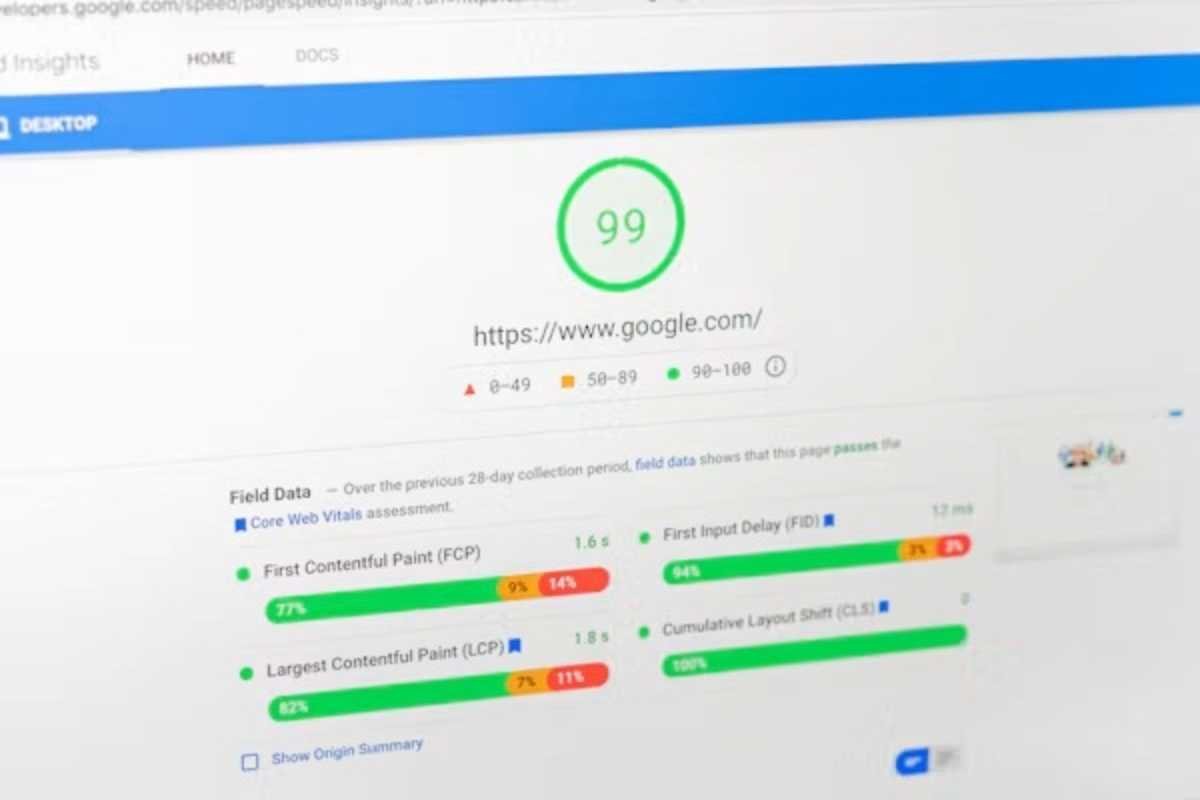
Google measures real-world experience through Core Web Vitals. The three metrics are Largest Contentful Paint (LCP), Interaction to Next Paint (INP) and Cumulative Layout Shift (CLS). Google’s recommended “good” thresholds are an LCP of 2.5 seconds or less, an INP of 200 milliseconds or less, and a CLS of 0.1 or less.
When you speed up WordPress website templates and assets, you improve all three. Faster pages also keep people reading, lower bounce rates and give search engines less trouble crawling your content. In short, the decision to speed up WordPress website performance is both a ranking task and a conversion task.
Step 1: Measure Before You Speed Up WordPress Website Pages
You cannot fix what you have not measured. Before you touch a single setting, test your key pages with three free tools:
- Google PageSpeed Insights for Core Web Vitals field data and lab data
- GTmetrix for waterfall charts that show which files load slowly
- WebPageTest for testing from different locations and connection speeds
Write down your LCP, total page size and number of requests. Test your homepage, one blog post and one important landing page. This baseline lets you prove that each change helped, and it is the same habit we recommend when building a monthly SEO reporting template for clients.
Step 2: Choose Better Hosting to Speed Up WordPress Website Response
Hosting is the foundation. If your server responds slowly, no plugin can fully rescue you. Cheap shared hosting puts hundreds of sites on one machine, so your pages compete for resources.
Look for hosting with LiteSpeed or NGINX servers, built-in caching, current PHP versions, SSD or NVMe storage and data centers close to your audience. Providers such as SiteGround, Cloudways, Kinsta and Hostinger’s higher plans are popular because they include these features. If you are unsure what to budget, read our WordPress hosting cost breakdown before you upgrade.
Upgrading hosting is often the quickest way to speed up WordPress website response times, because it lowers Time to First Byte (TTFB) before any page content is even sent.
Step 3: Use a Lightweight Theme
Heavy multipurpose themes load dozens of scripts you never use. Lightweight themes such as GeneratePress, Astra, Kadence and Blocksy ship with far less code and give you control over what loads.
A lean theme is a simple way to speed up WordPress website code before you even touch a plugin. Avoid sliders, animated page builders you do not need and bundled add-ons. If you are still deciding which platform fits your project, our WordPress vs Shopify comparison explains how theme and platform choices affect speed and growth.
Step 4: Install a Caching Plugin
Without caching, WordPress builds every page from scratch using PHP and database queries. A caching plugin saves a ready-made HTML copy and serves it instantly. This is one of the highest-impact ways to speed up WordPress website loading, and it takes minutes.
Top choices include:
- WP Rocket (premium, easiest setup)
- LiteSpeed Cache (free, best on LiteSpeed servers)
- W3 Total Cache (free, many options)
- WP Super Cache (free, simple)
Install only one caching plugin. Running two creates conflicts that can slow things down or break layouts. Enable page caching, browser caching and GZIP or Brotli compression, then clear the cache after each change.
Step 5: Optimize Your Images
Images are usually the largest files on a page. Oversized photos are the most common reason a site feels sluggish, and fixing them is essential if you want to speed up WordPress website pages on mobile.
- Resize images to the maximum width they display, often 1200 to 1600 pixels.
- Compress them with plugins such as ShortPixel, Imagify, EWWW or Smush.
- Convert them to WebP or AVIF, which are much smaller than JPEG and PNG at similar quality.
- Always set width and height attributes so layout does not jump (this helps CLS).
Image work is the most visible way to speed up WordPress website visuals without hurting quality.
Do not lazy load the main image at the top of the page. That image is usually your LCP element, so it should load first with high priority.
Step 6: Minify, Combine and Defer Code
Minification removes spaces and comments from CSS and JavaScript so files shrink. Deferring JavaScript lets the visible part of the page load before scripts run. Most caching plugins include these options, and minification is a free way to speed up WordPress website files.
Be careful here. Aggressive settings can break menus, forms or sliders. Turn on one option at a time, test the site and keep a backup. Generating critical CSS and removing unused CSS can also help you speed up WordPress website rendering, especially on pages built with page builders.
Step 7: Add a Content Delivery Network
A content delivery network (CDN) stores copies of your static files on servers around the world, so visitors download them from a nearby location. Cloudflare offers a generous free plan, while Bunny.net and KeyCDN are affordable paid options.
A CDN is especially valuable if your audience is spread across countries. It also absorbs traffic spikes and adds a layer of security. For many sites, pairing caching with a CDN is the point where you can truly speed up WordPress website delivery globally.
Step 8: Clean and Optimize the Database
Over time, WordPress stores post revisions, trashed items, spam comments and expired transients. A bloated database makes queries slower, particularly on older sites and online stores.
Use WP-Optimize or Advanced Database Cleaner to remove unnecessary data, and limit revisions by adding a line to your configuration file. Always take a full backup before cleaning. Scheduled monthly cleanups keep things tidy without effort, and a lean database helps speed up WordPress website queries.
Step 9: Audit Your Plugins
Every plugin adds code, and some add database queries on every page. The number of plugins matters less than their quality, but weak plugins are a frequent cause of slowdowns.
- Delete anything inactive or unused.
- Replace multi-feature plugins when you only use one function.
- Use Query Monitor to find plugins that run slow queries.
- Use Perfmatters or Asset CleanUp to stop scripts from loading on pages that do not need them.
Many site owners find this is the cheapest way to speed up WordPress website behavior without spending money.
Step 10: Handle Fonts, Embeds and Third-Party Scripts
Custom fonts, social feeds, chat widgets, ad scripts and tracking tags can quietly add seconds to load time. Host fonts locally, load only the weights you use and enable font-display swap so text appears immediately.
Replace video embeds with a clickable thumbnail that loads the player only when tapped. Review analytics and marketing tags regularly and remove the ones nobody checks.
Step 11: Keep PHP and WordPress Updated
Newer PHP versions run WordPress noticeably faster and more securely than older ones. Check your hosting dashboard and move to a currently supported PHP version after testing on a staging copy. This update alone can speed up WordPress website execution with almost no effort. Keep WordPress core, themes and plugins updated as well, since updates often include performance fixes.
Step 12: Monitor and Maintain
Speed is not a one-time project. New plugins, large uploads and design changes can undo your work. Retest monthly, watch the Core Web Vitals report in Google Search Console and fix pages flagged as “poor” or “needs improvement.” Treat every new feature as a reason to retest and, if needed, speed up WordPress website pages again.
Quick Comparison of Popular Speed Plugins
These tools help you speed up WordPress website projects of any size:
| Plugin | Type | Best For | Price |
|---|---|---|---|
| WP Rocket | Caching + optimization | Beginners who want one-click setup | Premium |
| LiteSpeed Cache | Caching + image tools | Sites on LiteSpeed hosting | Free |
| ShortPixel | Image compression | Bulk WebP and AVIF conversion | Free tier + credits |
| Perfmatters | Script control | Disabling unused scripts per page | Premium |
| WP-Optimize | Database cleanup | Removing revisions and bloat | Free + premium |
Pros and Cons of Trying to Speed Up WordPress Website Performance
Pros
- Better Core Web Vitals and stronger ranking potential
- Lower bounce rate and longer sessions
- Higher conversion rates for leads and sales
- Reduced server load and lower hosting stress
Cons
- Aggressive settings can break layouts or scripts
- Premium tools add monthly or yearly costs
- Ongoing testing and maintenance are required
Common Mistakes to Avoid When You Speed Up WordPress Website Settings
- Installing several caching or optimization plugins at once
- Lazy loading the top-of-page image
- Skipping backups before changing settings
- Testing only on desktop and ignoring mobile
- Chasing a perfect 100 score instead of real user experience
Whenever you speed up WordPress website settings, change one thing at a time so you know what worked. A perfect score is not the goal. Real-world loading and smooth interaction matter more than a number in a lab test.
Frequently Asked Questions
How fast should a WordPress site load?
Aim for an LCP under 2.5 seconds on mobile. Many well-optimized sites load in one to two seconds.
How long does it take to speed up WordPress website pages?
Basic fixes like caching and image compression take a few hours. A full cleanup, including hosting changes, can take a weekend.
Can I speed up WordPress website pages for free?
Yes. LiteSpeed Cache, WP-Optimize, Cloudflare’s free plan and image plugins with free tiers cover most of the work.
What is the fastest way to speed up WordPress website loading?
Start with quality hosting, a caching plugin and image compression. These three changes usually deliver the largest improvement.
Do too many plugins slow down WordPress?
Poorly coded plugins slow a site, not the count itself. Audit them, remove what you do not need and keep the rest updated.
Is a CDN necessary for a small site?
Not always, but a free Cloudflare plan is easy to add and helps visitors in different regions.
Will speed improvements help my rankings?
Speed is part of Google’s page experience signals, and it clearly improves user behavior. It will not replace good content, but it supports it.
Final Thoughts
You do not need to apply everything in one day. Measure your baseline, upgrade weak hosting, add caching, compress images and trim plugins. Those steps alone will often speed up WordPress website performance enough to move your Core Web Vitals into the green. Then keep testing every month so your site stays fast as it grows.
If your pages still feel slow after these fixes, the cause is usually hosting, a heavy theme or a problem plugin, so revisit those areas first. Consistent care is what lets you speed up WordPress website results for the long term.





One Comment